Name(s): The portions of the assignment for which you'll want to use SPSS are in boldface type . On any
Name(s):
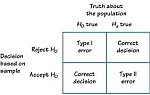
The portions of the assignment for which you'll want to use SPSS are in boldface type . On any exercises for which you choose to use SPSS, For all hypothesis tests, include all four steps of hypothesis testing ( i.e., H 0 and H 1 , alpha level/critical values, calculated test statistic, and conclusion). Add to your conclusion a sentence or two that verbally describes the results.
Please type or paste your responses or output into the appropriate areas on this document. Do no delete the instructions or the point values on this assignment.
Some SPSS guidelines are provided at the end of this document
- Suppose we know that in 2012, the mean number of TV hours viewed per day was µ = 3 hours. You would like to assess whether the mean hours of TV viewing differs in the population from which the current sample was drawn (which was in 1991). Consider the data set "ICPSR91.sav" (located in Blackboard) to be a random sample of U.S. persons taken in 1991.
- Construct a histogram of the variable "hours of TV watching" (with normal curve superimposed). Paste the histogram below and describe the histogram .
- Test whether the mean hours of TV watching in 1991 differs from the mean hours watched in 2012. Use alpha = .05. Show all four steps of the hypothesis test ! Please keep in mind that in this case your sample data is from 1991 (ICPSR91.sav) and the population mean is from 2012.
- Suppose we know that in U.S. population in 2012, the mean number of siblings for individuals was μ = 3.5. You would like to assess whether the mean number of siblings in the 1991 population differs from 2012. Consider the data set "ICPSR91.sav" to be a random sample of U.S. persons taken in 1991.
- Construct a histogram of the variable "number of siblings" (with normal curve superimposed) and paste it below . Describe the histogram .
- Test whether the mean "number of siblings" in 1991 differs from the mean number of siblings in 2012 Use alpha = .05. Show all four steps of the hypothesis test !
- Will the shape of the distribution of "number of siblings" affect the results of this hypothesis test? Why or why not?
-
A researcher was interested in whether arachnophobia (fear of spiders) is specific to real spiders, or whether pictures of spiders can evoke similar anxiety. Twelve people were exposed to a real spider, and their level of anxiety assessed (high scores correspond to higher anxiety). Twelve additional people were shown a picture of a spider, and their anxiety was also measured. The data are as follows:
Person Group Anxiety Score 1 Picture 30 2 Picture 35 3 Picture 45 4 Picture 40 5 Picture 50 6 Picture 35 7 Picture 55 8 Picture 25 9 Picture 30 10 Picture 45 11 Picture 40 12 Picture 50 13 Real Spider 40 14 Real Spider 35 15 Real Spider 50 16 Real Spider 55 17 Real Spider 65 18 Real Spider 55 19 Real Spider 50 20 Real Spider 35 21 Real Spider 30 22 Real Spider 50 23 Real Spider 60 24 Real Spider 39
Carry out a hypothesis test to assess whether the mean anxiety level of individuals who encounter a real spider differs from those who are shown a picture of a spider. Use a two-tailed test with alpha = .05. You may do this "by hand" or by using SPSS . Show all four steps of the hypothesis test . Note. These data are also available in Blackboard ( spiderBG.sav ).
- You may either use SPSS for this problem or carry it out using hand calculations Below are data for n = 20 individuals indicating the resting pulse rate of each person, and whether or not that person regularly exercises.
Exercise and pulse rate data
| Person | Resting pulse rate | Regularly exercises |
| 1 | 72 | No |
| 2 | 62 | Yes |
| 3 | 72 | Yes |
| 4 | 84 | No |
| 5 | 60 | Yes |
| 6 | 63 | Yes |
| 7 | 66 | No |
| 8 | 72 | No |
| 9 | 75 | Yes |
| 10 | 60 | Yes |
| 11 | 62 | No |
| 12 | 84 | No |
| 13 | 76 | No |
| 14 | 60 | Yes |
| 15 | 52 | Yes |
| 16 | 60 | No |
| 17 | 64 | Yes |
| 18 | 74 | Yes |
| 19 | 68 | Yes |
| 20 | 64 | Yes |
- Assuming this is a random sample from a larger population, carry out a hypothesis test to determine whether the mean pulse rate differs between those who do regularly exercise and those who don't regularly exercise. You may do this "by hand" or using SPSS. Use alpha = .05, and show all four steps .
- Compute and interpret the value of Cohen’s d (effect size). Note. The value of the pooled standard deviation is S p = 7.74
-
Article reading
(article is located in the Course Documents button of Blackboard):
Havener, L., Gentes, L, Thaler, B., Megel, M. E., Baun, M. M., Driscoll, F. A., Beiraghi, S., & Agrawal, S. (2001). The effects of a companion animal on distress in children undergoing dental procedures. Issues in Comprehensive Pediatric Nursing, 24 , 137-152.
- What was the purpose of this study?
- What were the independent and dependent variables?
- What is the "OSBD" and what does it measure?
- Very briefly describe how the study was carried out
-
Was there a significant difference in behavioral distress between the experimental and control group? What was the observed value of the
t
-statistic? What were the degrees of freedom? What would the critical values of
t
be? What was the
p
-value? (Show your answers in the table below
Significant difference? (yes/no) t -statistic df t -critical values p -value - The authors provide various reasons for the results they obtained. List two of them.
- Ten pilots performed tasks at a simulated altitude of 25,000 feet. Each pilot performed the tasks in a completely sober condition and, three days later, after drinking alcohol. The response variable is the time (in seconds) of useful performance of the tasks for each condition. The longer a pilot spends on useful performance, the better. The data are provided below.
| Pilot | Response time (no alcohol) | Response time (with alcohol) |
| 1 | 251 | 195 |
| 2 | 565 | 375 |
| 3 | 500 | 310 |
| 4 | 630 | 240 |
| 5 | 260 | 255 |
| 6 | 365 | 420 |
| 7 | 400 | 405 |
| 8 | 535 | 205 |
| 9 | 410 | 285 |
| 10 | 900 | 900 |
- Test whether there is a difference between the response times for the two conditions (alcohol and no alcohol) for the pilots. Use a two-tailed test with alpha = .05. Show all four steps of the hypothesis test .
- Compute an effect size (Cohen’s d ) to assess the magnitude of this effect.
- Computational exercise and article reading Read the following article, and respond to the questions below (article is located in the "Course Documents" section of Blackboard (in the "Articles" folder).
Parker, V. & Gerber, B. (2000). Effects of a science intervention program on middle-grade student achievement and attitudes. School Science and Mathematics, 100 (5), 236-242.
- What single factor has been found to have the greatest effect on attitudes towards science?
- What were the two research hypotheses in this study?
- What two unique elements did the science intervention program in this study use?
- How was science achievement measured?
- How was science attitude measured? What two subscales are included in this measure?
-
In the table below, indicate whether the science intervention had significant effects on achievement and attitude. Specifically, for each of the outcome variables in the table below, indicate the mean values for pre- and post-tests, the observed value of the
t-statistic
, the
df
, the two-tailed critical values of
t
(with alpha = .05, which you can obtain from the table in your text's appendix), and whether a significant difference between pre and post-test was found.
Note: you do not need to compute these values; they can be found in the text of the article (except for the critical t-values, which can be found in your textbook's appendix).
Outcome variable pre-test mean post-test mean t-statistic
(test statistic)df t-critical values Significant pre-test to post-test difference?
(yes or no)Science Achievement Science Attitude (ATSS overall score) Science Motivation (ATSS subscale 1) Science Importance (ATSS subscale 2) - Using the data provided in Table 1 of the article, construct both 95% and 99% confidence intervals for the difference between pre- and post-test achievement scores . Interpret the intervals! (i.e., is zero within each interval, and what does this indicate?) You are encouraged to use SPSS for this exercise.
- Using the data contained in Table 1 (p. 239) of the above article (" Effects of a science intervention program on middle-grade student achievement and attitudes "), replicate the results for achievement (i.e ., carry out a paired samples t -test using these data ). Show all four steps and also paste in below the SPSS output tables that contain the descriptive statistics and the observed t-statistic . Note. If you wish to use SPSS for this exercise, you will need to manually enter the data from this table into the SPSS data editor. It’s possible that the computed t -statistic that you obtain may be negative (rather than positive, as it is in the article). It depends upon how you have entered your data. This is okay, because it will not affect the statistical decision.
- Compute and interpret the value of Cohen's d for the data in Table 1. (Note. Use the descriptive statistics that you obtained previously.)
- You may either use SPSS for this problem or carry it out using hand calculations . Women between 20-25 years of age were randomly selected, then randomly assigned to one of five fitness programs. After six weeks, the physical fitness of each woman was measured (on a scale of 0-25, with higher scores indicating higher fitness). The data are presented below and are also available in SPSS format in the "Course Documents" section of Blackboard (fitness.sav).
Fitness data
| Fitness score | Fitness program |
| 10 | Anaerobic |
| 15 | Anaerobic |
| 9 | Anaerobic |
| 7 | Anaerobic |
| 5 | Anaerobic |
| 4 | Anaerobic |
| 6 | Anaerobic |
| 9 | anaerobic & flexibility |
| 11 | anaerobic & flexibility |
| 8 | anaerobic & flexibility |
| 10 | anaerobic & flexibility |
| 7 | anaerobic & flexibility |
| 9 | anaerobic & flexibility |
| 9 | anaerobic & flexibility |
| 5 | Control |
| 7 | Control |
| 9 | Control |
| 6 | Control |
| 6 | Control |
| 3 | Control |
| 7 | Control |
| 13 | Aerobic |
| 10 | Aerobic |
| 7 | Aerobic |
| 11 | Aerobic |
| 8 | Aerobic |
| 10 | Aerobic |
| 18 | Aerobic |
| 6 | aerobic & flexibility |
| 19 | aerobic & flexibility |
| 13 | aerobic & flexibility |
| 10 | aerobic & flexibility |
| 15 | aerobic & flexibility |
| 11 | aerobic & flexibility |
| 10 | aerobic & flexibility |
- Carry out a hypothesis test and construct a plot of mean values (using alpha = .05) to assess whether there is an "overall" difference among the five groups. S how all four steps of your hypothesis test.
- Carry out Tukey post hoc tests to assess which specific pairs of programs differ (use alpha = .05). Remember to interpret the results!
- Note.You may either use SPSS for this problem or carry it out using hand calculations . Below are data taken from 25 women seeking marital counseling. The data contain scores for each individual on 1) verbal communication (with higher scores indicating higher communication skills) and 2) marital satisfaction (with higher scores indicating higher satisfaction ). Note. The data are presented below and are also in the "Course Documents" section of Blackboard (satisf.sav).
Marital Satisfaction data
| Client I.D. | Communication score | Marital satisfaction score |
| 1 | 37 | 71 |
| 2 | 27 | 68 |
| 3 | 30 | 75 |
| 4 | 52 | 81 |
| 5 | 30 | 70 |
| 6 | 42 | 79 |
| 7 | 35 | 76 |
| 8 | 32 | 67 |
| 9 | 29 | 73 |
| 10 | 33 | 69 |
| 11 | 46 | 77 |
| 12 | 43 | 73 |
| 13 | 55 | 67 |
| 14 | 39 | 69 |
| 15 | 43 | 75 |
| 16 | 37 | 76 |
| 17 | 48 | 68 |
| 18 | 30 | 65 |
| 19 | 42 | 78 |
| 20 | 38 | 70 |
| 21 | 42 | 75 |
| 22 | 25 | 67 |
| 23 | 36 | 69 |
| 24 | 49 | 77 |
| 25 | 42 | 73 |
- Construct a scatterplot (with the regression line drawn in) with verbal communication along the horizontal (x) axis, and marital satisfaction along the vertical (y) axis, and paste it below. Describe the relationship (form, direction, and strength), and indicate any possible outliers.
- Compute the Pearson correlation coefficient between verbal communication and marital satisfaction, and carry out a hypothesis test to test whether the population correlation is zero (show all four steps!).
- If we were to transform all the marital satisfaction scores by adding 10 points to each, how would this change the value of the Pearson correlation coefficient between verbal communication and marital satisfaction? (Hint: Remembering that the correlation coefficient involves the summed product of z -scores, consider how it would change the z -scores for this variable.)
- Compute the regression equation for predicting marital satisfaction from verbal communication score. Specifically,
- Provide this equation (in the form).
- Interpret the value of the slope ( b ).
- Based upon this regression equation, what would be the predicted marital satisfaction score for a client whose verbal communication score is 50? Be precise.
- Are the assumptions of the regression analysis met? Check both the normality and homoscedasticity of the residuals by constructing and interpreting plots for each.
- Give two reasons why it might be unwise to compute and interpret the value of a Pearson correlation coefficient before examining a scatterplot of the data.
- Article reading (located in the Course Documents button of Blackboard):
Bentz, J., Shinn, N. R. (1990). Training general education pupils to monitor reading using curriculum-based measurement procedures. Psychology Review, 19 (1), 23-32.
- What is Curriculum-Based Measurement (CBM)?
- Why, according to the authors, has CBM not been more widely used?
- In this study 4 th and 5 th grade students monitored the responses of their younger peers and identified/recorded errors. Compared to adults, were they accurate?
- One of the research questions this study addressed concerned the relationship between the skill level of a child monitor and his/her accuracy in recording errors. This was assessed at several reading difficulty levels. What were the results? Be specific.
- Note. You may either use SPSS for this problem or carry it out using hand calculations .
A researcher was interested in the relationship between the social class of parents and the discipline style they use with their children. Groups of working-class, middle-class, and upper-class parents were studied. Each participant was classified as using primarily physical discipline (emphasizing physical punishment), primarily psychological discipline (emphasizing psychological punishment such as scolding and withdrawal of affection), or a mixture of physical and psychological discipline.
Below is the obtained cross-classification table. Note. If you wish to use SPSS to carry out the analysis, data for these two variables are contained in the SPSS data file "class_discipline", available under Course Documents in Blackboard.
Social class and discipline cross-classification table:
| Discipline Style | ||||
| Social class | Physical | Psychological | Mixed | (Totals) |
| Working class | 60 | 29 | 48 | 137 |
| Middle class | 24 | 49 | 25 | 98 |
| Upper class | 18 | 31 | 16 | 65 |
| (Totals) | 102 | 109 | 89 | 300 |
-
Carry out a hypothesis test to assess whether a relationship exists between social class and discipline style.
Use alpha = .01 and show all four steps.
In addition to these four steps, if a significant relationship exists, describe the specific nature of the relationship between social class and discipline style - Compute and interpret the effect size (Cramer’s V ) for the relationship between social class and discipline style.
- Computational exercise and article reading
Rinn, A. N., & Nelson, A. N. (2009). Preservice teachers' perceptions of behaviors characteristic of ADHD and giftedness. Roeper Review, 31 (1), 18-26. ) (article is located in the Course Documents area of Blackboard):
- What characteristics might gifted children have in common with children with ADHD?
- Based on previous studies, are teachers generally accurate at diagnosing ADHD? Explain.
- Based on previous studies, are teachers generally accurate at recognizing giftedness? Explain.
- The authors were seeking to assess the relationship between two categorical variables. What were these two variables?
- Participants in this study were given one of two forms to complete ("Form A" or "Form B"). What was the difference between these two forms?
- What were the results from the chi-square test of independence? What was the magnitude of the effect?
- Using SPSS, replicate the chi-square test of independence that the authors carried out, and also compute the effect size (Cramer’s V ) and df . Copy and paste your SPSS output below.
- Imagine that you are presenting some research results that show a statistically significant difference in student reading scores when public and private school students are compared, and someone asks you what the meaning of "statistical significance" is. Describe, in "layperson's" language, what statistical significance means. Avoid the usage of technical terms as much as possible.
SPSS Guidelines
To create a histogram: Graphs>Legacy-dialogs>Histogram>(highlight chosen variable and insert into "variable" window, click "OK"); or Analyze>Descriptive Statistics>Frequencies (highlight chosen variable and insert into "variable(s)" window, click "Charts" button and choose "Histogram", click "continue", click "OK"). Note. If you want to superimpose a normal curve on your histogram, select the checkbox ("With normal curve") before clicking "OK."
To modify an existing SPSS histogram : Double-click on the histogram within the SPSS Viewer window. An SPSS Chart Editor window will open up, containing the histogram. To change the width or number of intervals, double-click on the intervals. An "interval axis" dialogue box will open. Select "Custom" (under "Intervals") and click "Define". Select either "# of intervals" or "interval width" (depending upon which you want to change). Enter in a chosen number. You may change the upper and lower limits of the histogram by entering in chosen values within the "Range: Displayed" windows at the bottom of the dialogue box. Click "Continue". Note that you may change the appearance of the interval labels by clicking on the "Labels" button (Choose "Midpoint" or "Range", and choose an "Orientation").
Click "OK" to construct the histogram (a frequency distribution table will also be constructed)
To create a frequency distribution table: Analyze>Descriptive Statistics>Frequencies (highlight chosen variable and insert into "variable(s)" window). Click "OK".
To create a boxplot (box-and-whiskers plot): Choose Analyze>Descriptive-statistic>Explore. Enter the outcome variable into the "Dependent List" field. If you wish to create several boxplots for different groups of cases, enter a grouping variable (e.g., gender) into the "factor list" field.
To compute the skewness statistic (as well as other descriptive statistics): Choose Analyze>Descriptive-statistic>Explore. Enter the outcome variable into the "Dependent List" field.
To obtain descriptive statistics (e.g., mean, median, range, standard deviation, interquartile range): Analyze>Descriptive Statistics>Frequencies (click "Statistics" button and select appropriate statistics); or Analyze>Descriptive Statistics>Descriptives (click "options" button to choose appropriate statistics; or Analyze>Descriptive Statistics>Explore (enter your variable of choice into the "variables" field; if you want descriptive statistics for separate groups of cases, add the grouping variable into the "factors" field). Note that none of these procedures, by themselves, will provide all descriptive statistics.
To obtain z -scores for a particular variable: Analyze>Descriptive Statistics>Descriptives, input the variable(s) you want to obtain z-scores for, then select the "Save standardized values as variables" option. SPSS will automatically create a new variable or variables (with name in the format of "zvariablename") in the last column of the data set. These values are the z-scores for the variable or variables you selected.
To transform a variable: Choose Transform>Compute-variable. In the "Target variable" field, type in the name of your new variable. This can be any name you wish (e.g., "newvar1"). In the "numeric expression" field, designate the transformation you’d like to apply. You may wish to choose from the Function groups and functions from the lists on the lower right, e.g., Mean(var1,var2,var3, or you can type in your own expression, e.g., (age*2)+10.
To carry out a single-sample t -test: Analyze>Compare Means>One-Sample t-test. Select your chosen variable and input it into the "test variables" window. Input the "test value" (null hypothesized value for the mean) in the lower window. Click "OK".
To construct a Q-Q plot assessing normality: Analyze>Descriptive Statistics>Explore. Enter in the dependent variable and (if you’re looking at more than one sample) the factor (the factor is the variable that divides your data into groups; e.g., gender). Click the "Plots" button, and select "normality plots with tests". Click "continue". Click "OK".
To carry out a two independent samples t-test: Analyze> Compare Means>Independent Samples t-test. Input the test variable (response variable) and grouping variable into their respective windows. Highlight the grouping variable (in the window) and click "Define Groups". You can either specify the values that define the groups (in the data below, for example, you would use "1" and "2" to define the groups), or you can specify a cut value (the value that will form the cut point for the two groups).
Note: make sure your data are set up with one variable (column in SPSS) containing the values for the response and one variable (column) containing the group label.
e.g.,
| score | group |
| 35 | 1 |
| 47 | 1 |
| 32 | 1 |
| 15 | 1 |
| 28 | 1 |
| 41 | 2 |
| 25 | 2 |
| 19 | 2 |
| 31 | 2 |
To construct a scatterplot: Construct your data in two columns (one column for the each variable). Choose Graphs>Scatter and select the "Simple" figure. Click "Define". Enter the dependent variable into the window for "y axis", and enter the independent variable into the window for "x axis" (if you wish, you can click the "title" button to create a title for your scatterplot). Click "OK". If you wish to add a linear regression line to your scatterplot, double-click on the scatterplot to open up the chart editor. Click on any one of the points in the scatterplot. In the chart editor, choose Elements>Fit-line-at-total.
To compute a Pearson correlation coefficient: Analyze>Correlate>Bivariate. Enter the variables that you wish to correlate in the "variables" field. Make sure the "Pearson" is checked. Click ‘OK.’
To carry out simple linear regression/correlation: Construct your data as you did for the scatterplot (i.e., two columns). Choose Analyze>Regression>Linear, and enter in your dependent and independent variables into the appropriate windows. To obtain the correlation, click the "Statistics" button and select "Descriptives". Click "Continue", Click "OK".
To construct a scatterplot: Choose Graphs>Scatter, then select the "simple" scatterplot. Click "define," then enter in the "X" (vertical axis) and "Y" (horizontal axis) variables.
To insert a regression line into a scatterplot, double-click on the scatterplot (a new Chart Editor window will appear). Click on the points in the scatterplot (within the Chart Editor) to "select" them, then choose the menu commands Chart>Options and select "Fit line—total" from the options. Click "OK."
To carry out a Chi-square test for independence: Your data consist of the observed values on each of the categorical variables. For example, if you have 17 subjects and you wanted to see if a relationship existed between their gender and their position on gun control, the SPSS data set might look as follows:
| subject | gender | position |
| 1 | male | support |
| 2 | male | support |
| 3 | male | oppose |
| 4 | male | support |
| 5 | male | oppose |
| 6 | male | oppose |
| 7 | male | support |
| 8 | male | support |
| 9 | male | oppose |
| 10 | male | support |
| 11 | female | oppose |
| 12 | female | oppose |
| 13 | female | oppose |
| 14 | female | support |
| 15 | female | oppose |
| 16 | female | support |
| 17 | female | oppose |
If you wish, you can set up your data in "abbreviated" form by entering in all the possible combinations of variable values in addition to a "weight" variable; e.g.,
| subject | gender | position | weight |
| 1 | Male | Support | 6 |
| 2 | Male | Oppose | 4 |
| 2 | Female | Support | 2 |
| 4 | Female | Oppose | 5 |
Note that the values of the "weight" variable reflect then number of individuals in each combination of categories (e.g., there were 6 males who supported gun control). Next, choose Data>Weight-cases, and select "Weight cases by…" Put the weight variable in the frequency window. Click "OK." Now run the chi-square analysis (see below).
Choose Analyze>Descriptive Statistics>Crosstabs and enter in the row and column variables (e.g., gender and position in the above example). Click the "Statistics" button and select "Chi-Square". Click the "Cells" button and select "observed" and "expected". Click "Continue", Click "OK".
To carry out a dependent samples (i.e., related or paired samples) t -test: Set up your data in two columns (one for each group). Choose Analyze>Compare Means>Paired Samples t-test. Now enter in both sets of variables (for both groups) into the "paired variables" window. Click "OK".
To create a new variable whose values are the difference between two other variables: Choose Transform>Compute from the Data Editor window. Type in a name for the new variable in the "Target Variable" window. Now enter an equation for the difference in the "Numeric Expression" window (e.g., "var1-var2"). Click "OK". The new variable will show up as a new column in your SPSS data set. You can now use this new variable to create a histogram, line plot, or whatever other analyses you wish.
To construct a confidence interval for a mean or a mean difference: Proceed exactly as if you were to carry out a hypothesis test of a single mean or mean difference (i.e., Analyze>Compare Means>One-sample/Independent samples/Paired samples), but also click the "options" button and select an appropriate confidence level (e.g., 90%, 95%, 99%). Click "continue", click "OK".
To carry out single factor ANOVA: Put your response variable in one column, and the group variable in a second column, as you did for the two-independent samples t -test (example above). Note, however, that you may have more than two values for the group variable (it depends upon how many groups you’re comparing). An example comparing three groups would set up the SPSS data in the following manner:
| score | group |
| 35 | 1 |
| 47 | 1 |
| 32 | 1 |
| 15 | 1 |
| 28 | 1 |
| 54 | 2 |
| 65 | 2 |
| 53 | 2 |
| 45 | 2 |
| 39 | 2 |
| 41 | 3 |
| 25 | 3 |
| 19 | 3 |
| 14 | 3 |
| 31 | 3 |
Note that the "group" variable needs to be a numeric variable (it’s nice, however, if you label the groups by clicking the "values" column in the "variable view" of SPSS).
Now choose Analyze>Compare Means>One-way ANOVA. Input the response variable into the "dependent list" window, and enter the group variable into the "factor" window. I
If you want to construct Tukey post-hoc intervals, select the "Post Hoc" button, and check "Tukey". Click "continue". Click "OK".
Deliverable: Word Document

-
 (See Steps) Descriptive Analysis State the breakdown of Marital
-
(Step-by-Step) Description : For this final question set, you
-
[Solution Library] Part I Question 1 : Think of this as a "virtual"
-
(All Steps) Below are the mean annual temperature and mortality
-
[Steps Shown] Smoking during pregnancy is a known cause of reduced
-
Lambda Coefficient Calculator - MathCracker.com


![[Solution Library] Part I Question 1 :](/images/solutions/MC-solution-library-83013.jpg "[Solution Library] Part I Question 1 : Think of this as a")
![[Steps Shown] Smoking during pregnancy is a](/images/solutions/MC-solution-library-83015.jpg "[Steps Shown] Smoking during pregnancy is a known cause of reduced")