
Introduction to Excel for Mathematical Applications
Microsoft Excel has gained immense popularity for its robust functionality in handling numerical data. It's not just a tool for organizing information; it's a dynamic platform that can be leveraged for a multitude of mathematical tasks. With its extensive range of functions and capabilities, Excel is an invaluable asset for students, educators, and professionals alike.

The beauty of Excel lies in its flexibility. Whether you're dealing with simple arithmetic or complex calculus, Excel provides the tools you need to perform calculations efficiently. Its user-friendly interface allows you to easily input data, apply formulas, and visualize outcomes, making math more accessible and less intimidating.
Moreover, Excel's ability to automate processes means you can solve repetitive or complex calculations with ease.
Linear Equations with Excel
1. Inputting Data: Begin by entering your coefficients and constants into a worksheet. This organized approach helps in keeping track of your variables.
2. Using Formulas: Utilize Excel's formula capabilities to calculate the equation's slope and intercept. Functions like SLOPE() and INTERCEPT() can quickly derive these parameters.
3. Graphing: Visualize the relationship between variables creating a scatter plot. Excel's chart tools allow you to add trendlines, making it easier to interpret linear relationships.
Systems of Equations
Systems of equations involve multiple equations that are solved simultaneously. Excel simplifies the process of solving these systems, particularly through methods like substitution and elimination.
· Matrix Methods: Excel's matrix functions, such as MMULT() and MINVERSE(), allow you to solve systems of equations though matrix algebra. This approach is particularly useful for larger systems.
· Substitution Method: For smaller systems, manually inputting equations and using Excel formulas can swiftly lead to solutions.
· Graphical Solutions: Plotting equations on a graph can visually demonstrate where the solutions lie. The intersection points of the graphs represent the solutions to the system.
Fractions, Ratios, and Percentages
Excel is adept at handling computations involving fractions, ratios, and percentages, which are essential components of everyday math.
· Use Excel's CONVERT() function to switch between different measurement units or convert decimal values to fractions.
· Custom Formatting: Apply custom formatting options to display numbers as fractions, making them easier to interpret and compare.
· Ratio Formulas: You can easily calculate ratios in Excel. For instance, dividing one cell by another provides a straightforward method to determine ratios.
· Percentage Calculations: Functions like PERCENTILE() and PERCENTRANK() help in understanding data distribution and ranking.
Statistical Functions
Statistics is a field that greatly benefits from Excel's computational power. With a wide range of statistical functions, Excel enables you to perform detailed data analysis and interpretation.
Descriptive Statistics: Use functions like AVERAGE(), MEDIAN(), MODE(), and STDEV() to derive insights from your data.
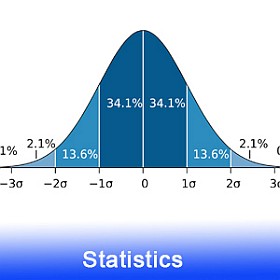
· Probability Distributions: Excel offers functions such as NORM.DIST() and BINOM.DIST() to analyze data based on probability distributions.
· Regression Analysis: The LINEST() function helps in performing linear regression, allowing you to explore relationships between variables.
Probability and Randomness
Excel provides tools to simulate and analyze these phenomena effectively.
· Random Number Generation: Excel's RAND() and RANDBETWEEN() functions allow you to generate random numbers, which can be useful for simulations and modeling.
· Monte Carlo Simulations: Using Excel, you can perform Monte Carlo simulations to explore different outcomes based on random inputs, providing insights into risk and uncertainty.
· Binomial and Normal Distributions: Excel's statistical functions enable you to calculate probabilities based on these distributions, helping you understand how likely different outcomes are.
Mathematical Modeling
Mathematical modeling involves creating abstract representations of real-world phenomena. The spreadsheet may be a suitable tool for developing these models.
· Creating Equations: Use Excel to input and manipulate equations that represent real-world scenarios, allowing you to explore different variables and outcomes.
· Solver Tool: Excel's Solver add-in can optimize models by finding the best possible solutions, such as maximizing profits or minimizing costs.
· Scenario Analysis: With different scenarios in Excel, you can assess how changes in variables impact your models, aiding in decision-making processes.
Excel's modeling capabilities is a valuable tool for engineers, scientists, and economists.
Calculating and Visualizing Data
Excel offers a wide range of tools and functions to handle these tasks efficiently.
· Data Entry: It allows easy data entry and storage, ensuring your Excel datasets are organized and accessible.
· Mathematical Calculations: Utilize Excel's extensive library of functions to perform calculations ranging from basic arithmetic to complex trigonometric operations.
· Charts and Graphs: Excel's charting tools offer a variety of options to visualize your data, such as bar graphs, pie charts, and scatter plots.
· Conditional Formatting: Highlight key data points or trends with conditional formatting, making it easier to interpret large datasets.
Conclusion
Excel's versatility in mathematics is unmatched, providing a set of tools for solving many mathematical problems. From basic arithmetic to complex modeling, Excel's capabilities make it an essential program for anyone looking to enhance their mathematical prowess. Excel simplifies mathematical processes, making complex calculations more manageable. Regular practice through Excel exercises enhances your skills and prepares you for real-world problems. Whether you're a student, educator, or professional, mastering Excel can significantly enhance your mathematical capabilities and open new doors to learning and exploration.
Related Calculators
 Math Tutorials - MathCracker.com
In case you have any suggestion, or if you would like to report a broken solver/calculator, please do not hesitate to contact us .