
You might think video editing is hard, but it isn't. Think about a special moment you want to share with your friends. That's when CapCut Desktop jumps off the page. It's a free video editing software created for beginners, making it easy for anyone to use. That includes students and casual users who want to edit videos.
Understanding the basics of CapCut is the bottom line for making videos that grab people's attention. With its user-friendly interface, users can import clips, add music, and apply effects without feeling confused. Plus, CapCut is a great tool for editing, whether you want to work on a school project or a fun family video. Excited to start? Check out the complete blog to discover your video editing skills!
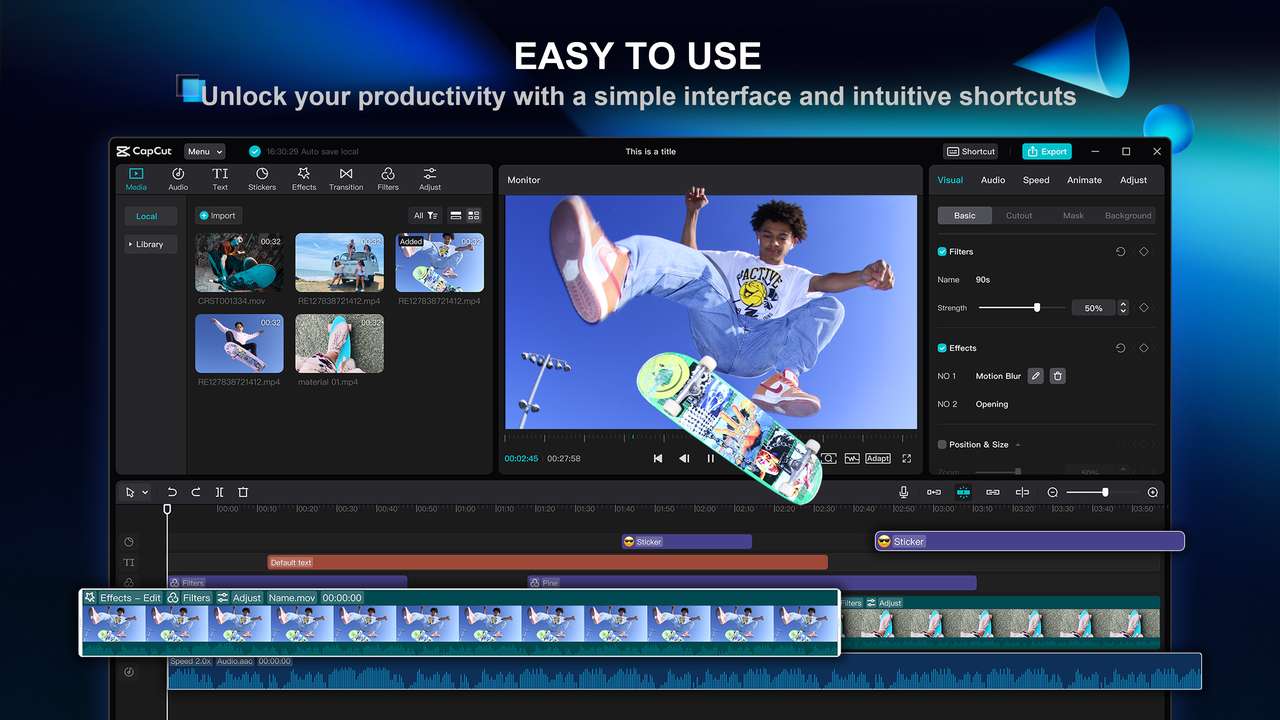
Why Choose CapCut for Beginners
CapCut is a wonderful tool for people who are new to editing videos. Here are the important reasons that make it the talk of the town:
- Free Access to Premium Features: CapCut gives users many premium features for free. It provides multiple filters, effects, transitions, and a background eraser. In turn, this allows users to enhance their videos without any expense.
- User-Friendly Interface: This app has an easy-to-use design that anyone can navigate without trouble. First-time users can learn the tools and features in no time, making editing a fun and easy task.
- Templates for Quick Editing: CapCut provides many ready-made templates that allow users to make professional videos promptly and easily. These templates help you save time and spark creativity, allowing newcomers to generate quality content more easily.
Thanks to its features, CapCut is second to none for anyone new to video editing. It verifies a simple and enjoyable process.
Steps to Get Started with CapCut Desktop
1. Download and Install CapCut Desktop
To get CapCut Desktop, follow these steps to download and install it:
- Visit the Official Website: Use your web browser to access the official CapCut site. Search for the link to download for Windows or Mac.
- Download the Installer: Press the correct download button. You'll see the installer file start to download, often named, "CapCutSetup.exe."
- Install CapCut: After downloading, find the installer in your downloads folder. Click it twice and then follow the instructions for installation.
- System Requirements: Confirm that your PC runs on Windows 7 or a more recent version, or macOS 10.11 or later.
- Sign Up or Login: After installing CapCut, start the app. You can sign in using your TikTok, Facebook, or Google account, or you can make a new account.
- Start Editing: When you log in, you can instantly start working on your video projects.
2. Import Your First Video
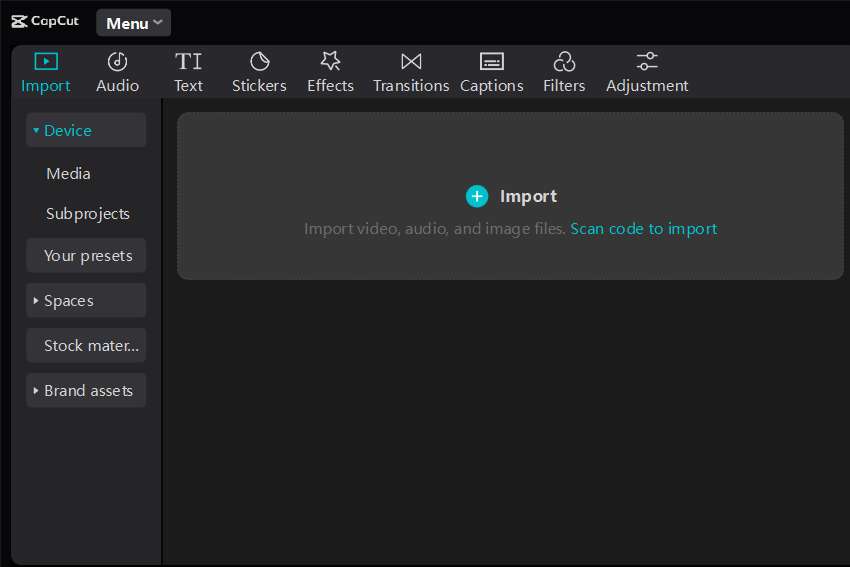
Start by opening the CapCut app and then create a new project to import your videos. Tap the "+" button, to view your device's files. After that, pick the video you want to add. CapCut supports various formats such as MP4, MOV, AVI, and MKV. For a more organized setup, establish a folder on your device for different media categories.
This keeps your project organized and helps you locate files more easily later on. Your video will show in the editor after you import it, ready for you to start editing. As well as always verify that your files are suitable for import to avoid any issues.
3. Basic Editing Techniques
When editing videos with CapCut, try these basic techniques:
- Cut and Trim: To get rid of unwanted parts, click on the clip in the timeline. Take advantage of the "Split" tool to cut the clip at your preferred spot. Following this, move the edges to cut the start or end of the clip. Plus, if you don't want any part, you can easily get rid of them by highlighting them and pressing "Delete."
- Adding Transitions: Click on the area between the clips after you have split them. Select a transition effect from the available choices to create smooth scene changes.
- Text Overlays and Titles: Press the "Text" icon to include titles or captions. Enter your text, than change the font, color, and size. Moreover, to create automatic captions, simply use CapCut's AI caption generator for accurate subtitles.
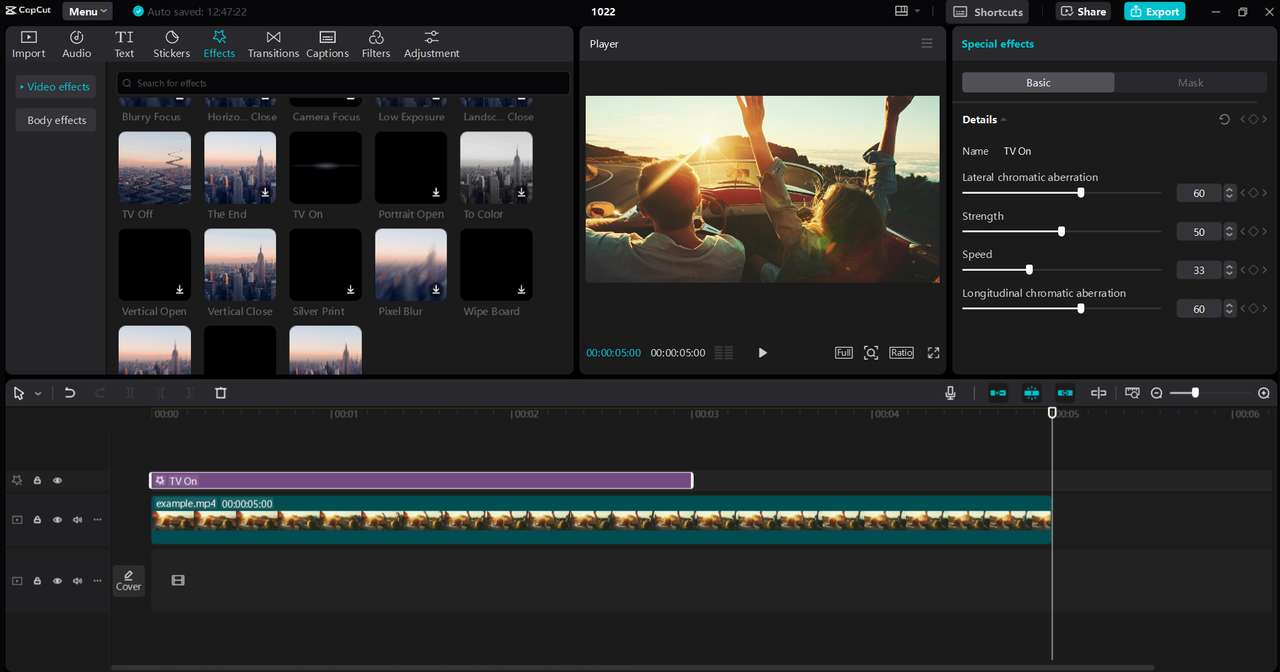
- Applying Filters and Effects: Upgrade your video by selecting a clip and using filters available in the toolbar. You can modify brightness, contrast, and saturation for better visual quality. Plus, experiment with different effects to add a unique touch to your video.
Follow these steps to make interesting videos using CapCut's easy-to-use tools.
4. Adding Music and Sound Effects
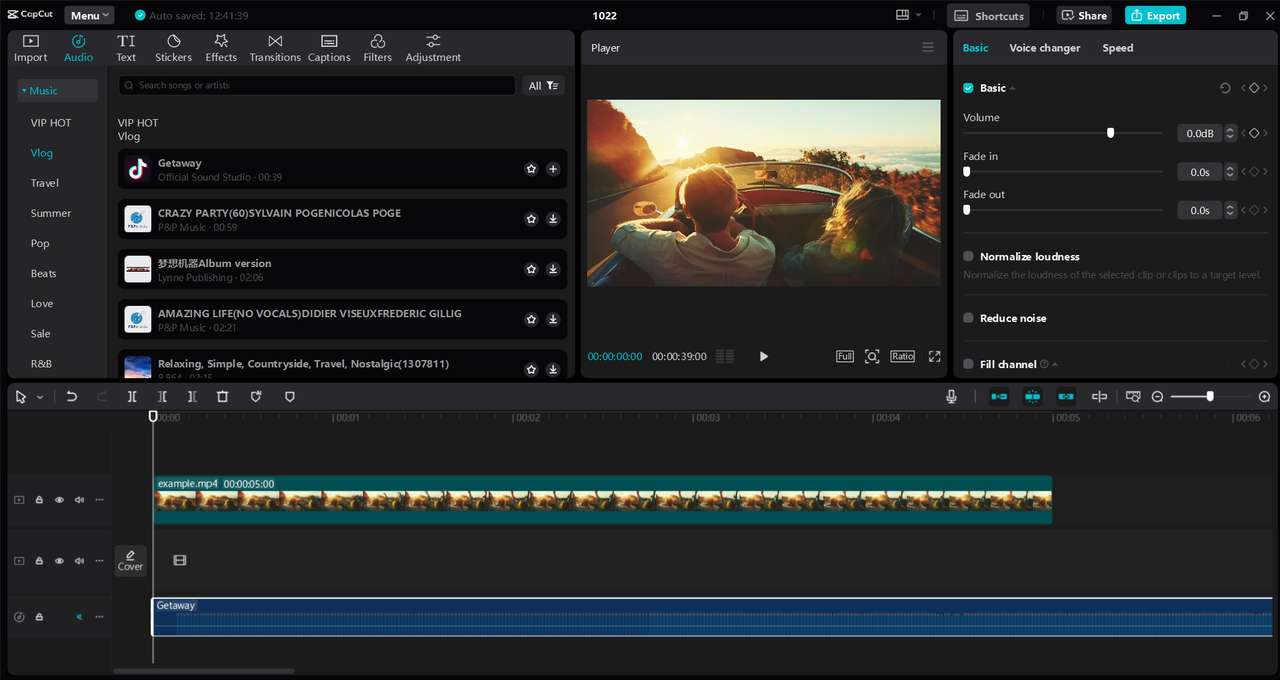
To incorporate music and sound effects in CapCut, first, select audio from your personal library. You can also choose from CapCut's available selections. Tap the audio icon and choose the track you wish to play. To match the audio with your video, move the audio clip on the timeline until it fits well with the images. Then, change the volume with the slider to confirm it fits well with your video and isn't too strong.
In addition, to achieve a professional finish, explore the sound effects that CapCut provides. You can use these effects on your music to enhance its depth. Moreover, you can also use the text-to-voice feature to add narration. This helps you create a smooth video without the need to record audio on your own. This feature enriches storytelling and holds your audience's attention.
5. Exporting and Sharing Your Video
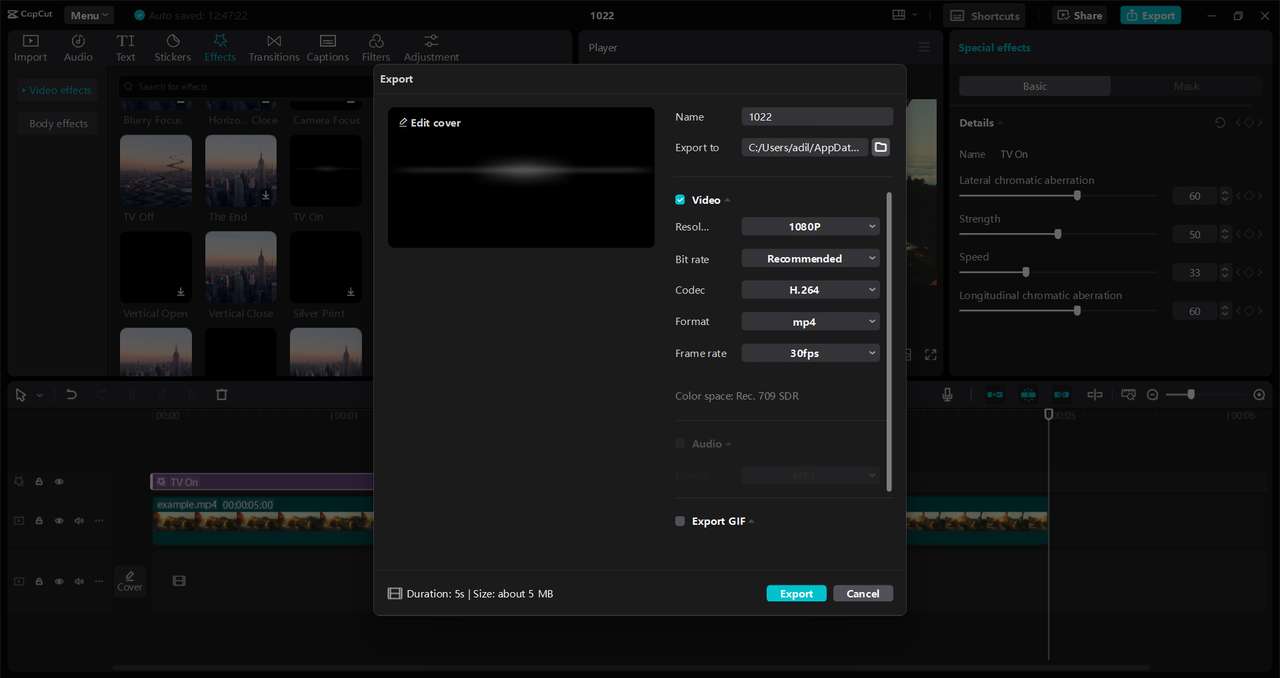
To share your video from CapCut, press the export button. Decide on the format you wish to use, like MP4 or MOV. Along with this, change the settings for resolution (720p or 1080p) and frame rate (30fps or 60fps) to match what you need. When you set higher options, the quality gets better, but the file size grows.
Once the adjustments are made, confirm the export. CapCut lets you share your creations straight to social media sites like Instagram, TikTok, and Facebook. Click on the platform icon after you export, then follow the steps to upload your video. This allows for fast and simple sharing without the need to save it beforehand.
Wrapping Up
CapCut Desktop is a simple and useful program for people new to editing. With its simple interface, anyone can promptly start editing videos. Furthermore, users can use options like the AI caption generator and text-to-voice to make editing better. CapCut is a free and strong tool that lets users make professional videos easily. Plus, people new to this can instantly pick up the essential concepts and progressively build their expertise.
Start your first video project today and learn how CapCut can make it simple to create interesting content. Take advantage of the creativity CapCut brings as you advance in your editing journey.
Related Calculators
 Write an Academic Essay by Gathering More Information about the Specific Topic - MathCracker.com
In case you have any suggestion, or if you would like to report a broken solver/calculator, please do not hesitate to contact us .